Quick answer
When the AirTag in your wallet stops updating in Find My, the cause is almost always one of four things: a Find My or Location Services setting on your iPhone, a low CR2032 battery in the AirTag, no Apple devices passing near the wallet, or notifications that were silenced. Check those first, toggle Bluetooth, restart the iPhone and make sure iOS is up to date. If the AirTag still won't show, remove it from Find My and add it again. The wallet itself doesn't block the AirTag — its holder is designed to keep the tag on the outside of the RFID-shielded card section.
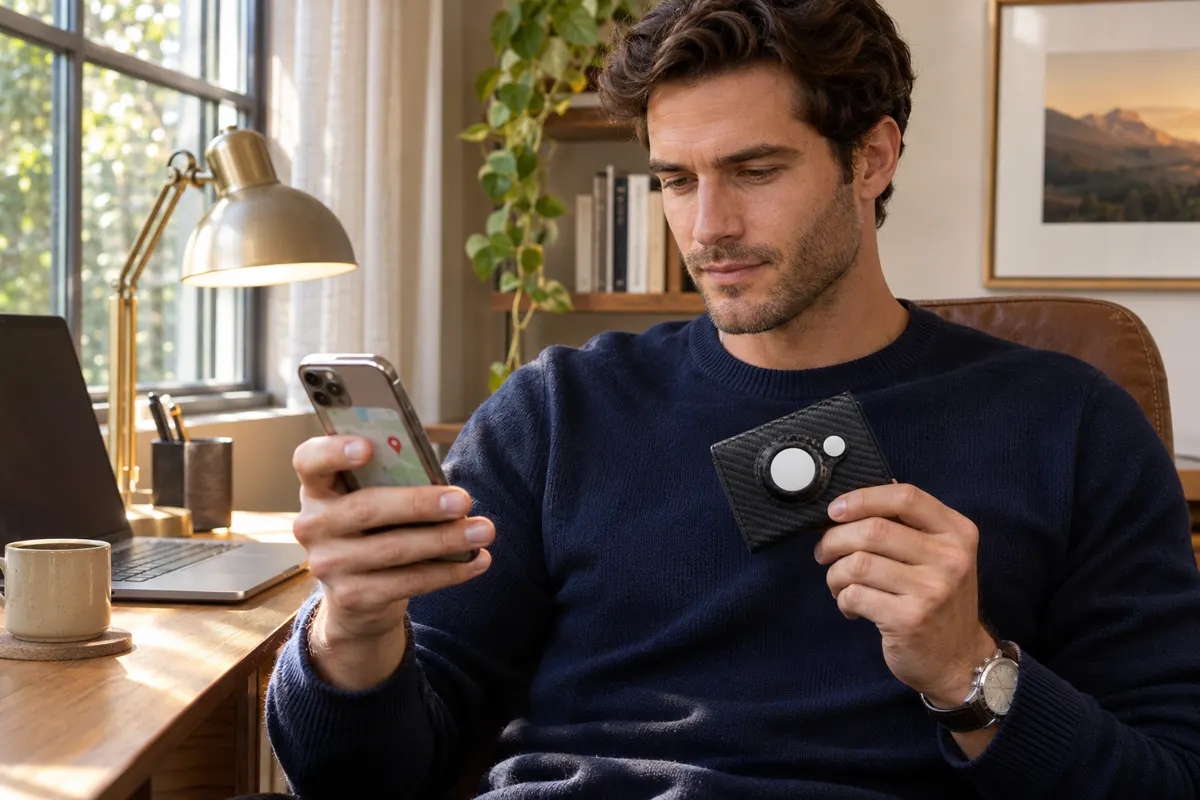
You open Find My to check on your wallet and the AirTag says "Seen 3 hours ago" — at the coffee shop you left long ago. Or you walk out the door without your wallet and the iPhone stays silent. Before you blame the wallet or the AirTag, know this: there is no fixed update interval for an AirTag, and most of these moments have a simple explanation you can sort out in a few minutes.
Here are the 8 causes we see most often, with the fix for each. If you're setting up for the first time, start with how to set up the SafeTrack Wallet on day one.
First: the 2-minute settings check
- Find My network is on: Settings › [your name] › Find My › Find My iPhone, and make sure Find My network and Send Last Location are switched on.
- Location access for Find My: Settings › Privacy & Security › Location Services › Find My → "While Using the App" with Precise Location on.
- Bluetooth is really on: turning it off in Control Center only disconnects until tomorrow — check it in Settings.
- Notifications allowed for Find My, and not muted by a Focus mode.
The 8 causes at a glance
| What you see | Likely cause | What to do |
|---|---|---|
| "Seen hours ago" | No Apple devices passing near the wallet | Go to the last location and use Play Sound or Precision Finding |
| AirTag missing from Items | Wrong Apple ID, glitch or permissions reset | Check account, restart, then remove and re-add |
| No left-behind alert | Notify When Left Behind is off | Turn it on for that item |
| Too many alerts | No trusted locations set | Add home and work as exceptions |
| Sound is weak or silent | Low battery or out of Bluetooth range | Check battery, get closer, play again |
| Low battery warning | CR2032 coin cell running down | Replace the CR2032 |
| Stopped after an iOS update | Settings changed during the update | Re-check Find My and Location settings |
| AirTag feels loose | Tag not fully seated in the holder | Reseat it until it sits flush |
1. Find My says "Seen hours ago"
Why: when your wallet is away from your iPhone, the AirTag's location updates only when another Apple device on the Find My network passes nearby. In a busy downtown that happens constantly; in a quiet parking garage, a country road or a closed office at night, it may not happen for a while. Fix: treat the last location as your starting point. Go there, then use Play Sound, or Find Nearby/Precision Finding on iPhones that support it. If you think the wallet was stolen, don't try to recover it yourself — contact the police and share what Find My shows.
2. The AirTag disappeared from the Items tab
Why: you're signed into a different Apple ID, an update reset permissions, or the app simply glitched. Fix: confirm the Apple ID, close Find My completely, toggle Bluetooth off and on, and restart the iPhone. Still missing? Remove the AirTag from Find My and add it again by holding it next to the phone.
3. You left the wallet behind and got no alert
Why: Notify When Left Behind is set per item and isn't always on after setup. Fix: open the AirTag in Find My, turn on Notify When Left Behind, then test it: leave the wallet at home and walk around the block.
4. You get alerts at home or at work
Why: no trusted locations. Fix: under Notify When Left Behind, add your home, office or gym locker as exceptions. Now you get alerted at the restaurant, not at your own front door.
5. Play Sound is weak or does nothing
Why: Play Sound works over Bluetooth, so your iPhone needs to be fairly close. A wallet in a coat pocket, under couch cushions or deep in a backpack muffles the sound, and a weak battery makes it quieter. Fix: move room to room and play the sound again in each; turn off the TV; listen close to furniture and bags.
6. Find My shows a low battery warning
Why: the AirTag runs on a replaceable CR2032 coin cell, which Apple says lasts more than a year in typical use. Fix: twist off the AirTag's back cover, swap in a fresh CR2032 and listen for the chime (our AirTag battery change guide shows every step and a 12-month check plan). Some CR2032 batteries with bitter coatings may not make proper contact, so check the battery type before you buy.
7. It stopped updating right after an iOS update
Why: updates occasionally switch settings or permissions back. Fix: run the 2-minute settings check again and make sure you're on the latest iOS version, since fixes for Find My arrive through updates. If the problem persists, Apple Support can check the AirTag itself.
8. The AirTag doesn't sit flush in the wallet
Why: the tag wasn't pressed fully into the holder. Fix: press the AirTag into the round holder until it sits flush. On the SafeTrack Wallet, the built-in AirTag slot is on the outside of the wallet, so the RFID-blocking layer protects your cards without getting between the AirTag and your iPhone.
Does an RFID-blocking wallet stop the AirTag from working?
It's the question we hear most. RFID blocking shields the card compartment so contactless cards can't be read through the wallet. A well-designed AirTag wallet keeps the tag in its own holder outside that shielded section, which is exactly how the SafeTrack Wallet is built. For more on what RFID blocking does and doesn't do, see do RFID-blocking wallets actually work?
A 30-second monthly habit that prevents most problems
Once a month, open Find My, check the AirTag's battery status, tap Play Sound once and confirm Notify When Left Behind is still on. That's it. It takes less time than looking for your wallet once.
Our recommendation: the SafeTrack Wallet
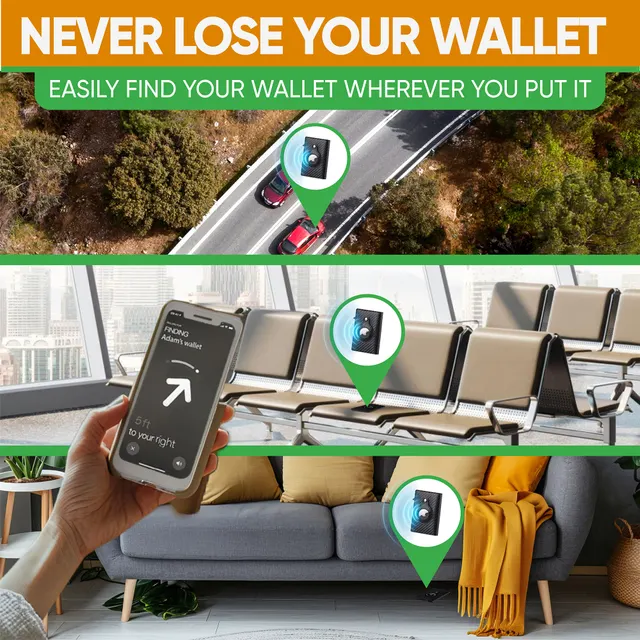
If you want your AirTag to live in your wallet securely and keep doing its job, the SafeTrack Wallet is the wallet we recommend:
- Built-in AirTag slot on the outside, so the tag sits flush and secure (AirTag sold separately).
- RFID-blocking card section that protects your contactless cards.
- Pop-up card access and a slim carbon fiber body that holds 1–14 cards plus cash.
- 90-day guarantee, so you can try it in your everyday routine.
Pricing on the official site: 1 wallet for $44.95 (+$4.95 shipping), 2 for $79.90, 3 for $105 ($35 each, free shipping, most popular), 4 for $140 and 5 for $165 ($33 each). See our full SafeTrack Wallet review or compare bundles on the home page.
Frequently asked questions
Why is my AirTag not updating its location?
Away from your iPhone, an AirTag updates only when another Apple device on the Find My network passes nearby, so quiet places mean fewer updates. Also check that Find My network, Send Last Location, Bluetooth and Location Services for Find My are on, and that the AirTag battery isn’t low.
Does an RFID-blocking wallet block an AirTag?
A well-designed AirTag wallet keeps the tag in its own holder outside the RFID-shielded card section. On the SafeTrack Wallet the built-in AirTag slot is on the outside, so the cards are protected and the AirTag stays reachable for your iPhone.
How do I force an AirTag to update?
There’s no button to force an update. Moving closer lets your own iPhone connect over Bluetooth, and you can then use Play Sound or Precision Finding on supported iPhones. Away from you, updates depend on nearby Apple devices.
How long does an AirTag battery last?
Apple says the replaceable CR2032 battery lasts more than a year in typical use. Find My shows a low battery warning when it’s time to replace it.
Should I remove and re-add my AirTag?
Only after checking your settings, toggling Bluetooth and restarting your iPhone. Removing and re-adding the AirTag clears many glitches, but it should be the last step, not the first.